
What Tools Miss in a Technical SEO Audit (and How to Catch It)

A proper SEO technical audit often starts with a crawl using website audit tools. These tools are excellent at collecting a wide range of data and catching common technical issues. But they can only audit what they’re programmed to see.
They run through a list of URLs, check status codes, scan titles, headers, internal links, and a bunch of other standard elements. But if something is hidden behind JavaScript, blocked by robots.txt, or only shows up in real-world usage, it often goes unnoticed.
That’s the gap.
A full website technical audit needs more than just crawl data. You need a combination of automated scans and hands-on, manual inspection. Without that balance, it’s easy to miss things that quietly hurt rankings, visibility, or user experience.
So while tools are fast and helpful, they are not enough on their own. To catch what they miss, you need to go beyond the crawl.
1. Core Web Vitals Based on Real Users, Not Just Lab Tests
Most technical SEO tools run performance audits in a lab environment. That means controlled conditions with stable internet and no third-party script interference. Sounds great, until your users visit from spotty Wi-Fi, or slower phones.
That’s when real problems show up.
Google’s rankings are based on field data. They use metrics from actual Chrome users to calculate Core Web Vitals like Largest Contentful Paint (LCP), Cumulative Layout Shift (CLS) and First Input Delay (FID) or Interaction to Next Paint (INP)
These might look fine in Lighthouse or your crawler’s audit, but still perform poorly in reality.
Where to look instead:
Use PageSpeed Insights and look at the “Discover what your real users are experiencing” section. That’s where Chrome User Experience Report (CrUX) data shows up. It tells you how real users are experiencing your pages. For more in-depth trends, check the Core Web Vitals report inside Google Search Console.
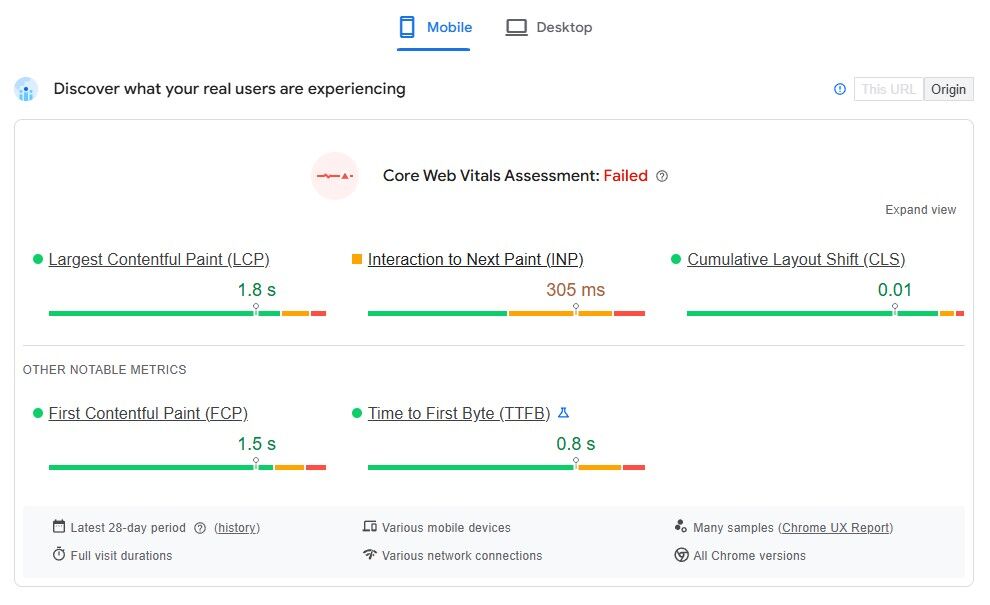
If your Core Web Vitals look good in your tool but bad in Google’s field reports, go with the field data. That’s the one Google uses to measure performance for rankings.
2. Accessibility and UX Problems That Need Human Checks
Most SEO tools aren’t designed to test user experience or accessibility. They may scan for missing alt text or warn about heading order, but deeper issues usually fly under the radar.
Things like:
- Poor color contrast that makes text hard to read
- Navigation that doesn’t work with a keyboard
- Elements that are unreadable by screen readers
- Focus indicators that disappear during tabbing
These don’t just affect accessibility, they also affect user behavior, bounce rates, and conversions. That makes them part of any proper website technical audit, even if they don’t show up in your crawl report.
How to test:
Use your keyboard to navigate through a page. Can you reach every link, button, or input without using a mouse? Try it with a screen reader like NVDA or VoiceOver. You can also install extensions like axe, WAVE, or Lighthouse in Chrome for quick checks. They won’t catch everything, but they’re a good starting point.
3. Schema That’s Technically Correct but Semantically Wrong
Just because your structured data passes validation doesn’t mean it’s sending the right signals.
Many tools confirm whether your schema is formatted correctly, but they don’t ask if it makes sense in context. That’s where issues start.
Common mistakes include:
- Marking an eCommerce product page as a blog article
- Using the FAQ schema on pages that aren’t actual FAQs
- Missing key fields like price, availability, or review
Google can detect when schema is misleading or irrelevant, and in some cases, it may stop displaying your rich results entirely.
What to do:
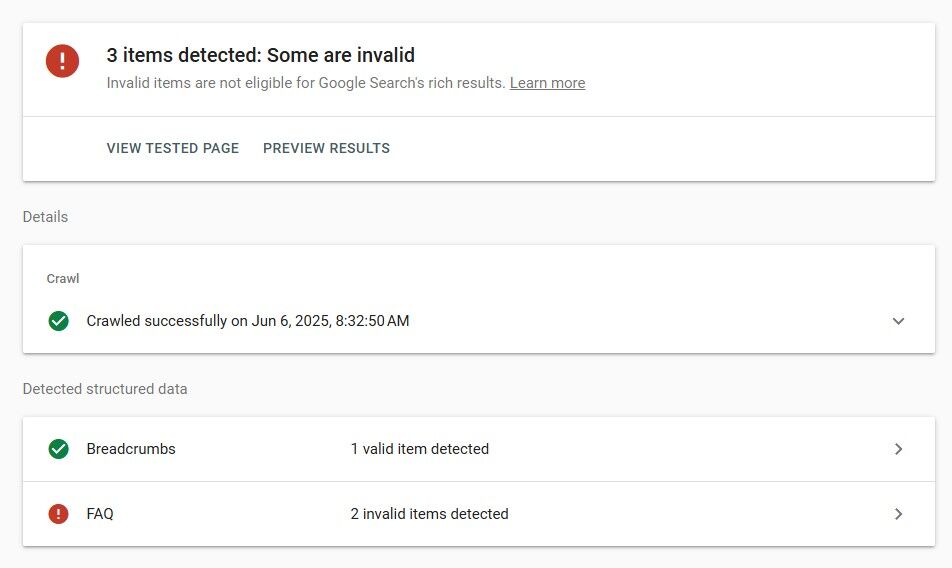
Check your schema using the Rich Results Test. Then read through the schema output and ask if it reflects what the page is actually about. If it feels forced or inaccurate, search engines might be confused too.
4. Server Logs Show Things That Crawl Reports Don’t
Crawl reports show you what a tool thinks is happening. Server logs show you what’s actually happening.
Most tools simulate a crawl and provide predictions or flags based on that data. But they can’t tell you how often Googlebot visits a page, whether it got stuck in a redirect loop, or if it’s wasting crawl budget on junk URLs. Server logs do.
When you review server logs, you can answer important questions like:
- Which bots are hitting your site
- How often they crawl certain folders
- Whether bots are hitting 404s, 301s, or non-indexable URLs
- If parameter URLs are ballooning and getting crawled unnecessarily
This is especially helpful for large sites where crawl budget matters. For example, if Googlebot is spending hundreds of visits a day on low-value calendar pages, that’s an issue no regular tool will catch.
How to check it:
Ask your dev team or hosting provider for raw access logs. You can use tools like Screaming Frog Log File Analyser or plug the logs into Excel for a rough review. Look for patterns. Are certain pages being crawled too often? Are important pages being skipped? The answers are often in the logs, not the crawl reports.
5. Crawl Traps and URL Variations
Not every URL is worth crawling, but search engines won’t always know that. Infinite scroll, dynamic filters, and date-based archives can create crawl loops that expand endlessly.
You’ll often see this on product grids with filters that change URLs, search result pages with query parameters, or URLs with session IDs or tracking tokens.
Some SEO tools have built-in rules to ignore these. But Googlebot may still crawl them, wasting time on URLs that add no value to the index.
What to check:
Open Search Console → Pages and sort the Not Indexed list. Look for long query strings or repeating patterns like ?page= or &color=.
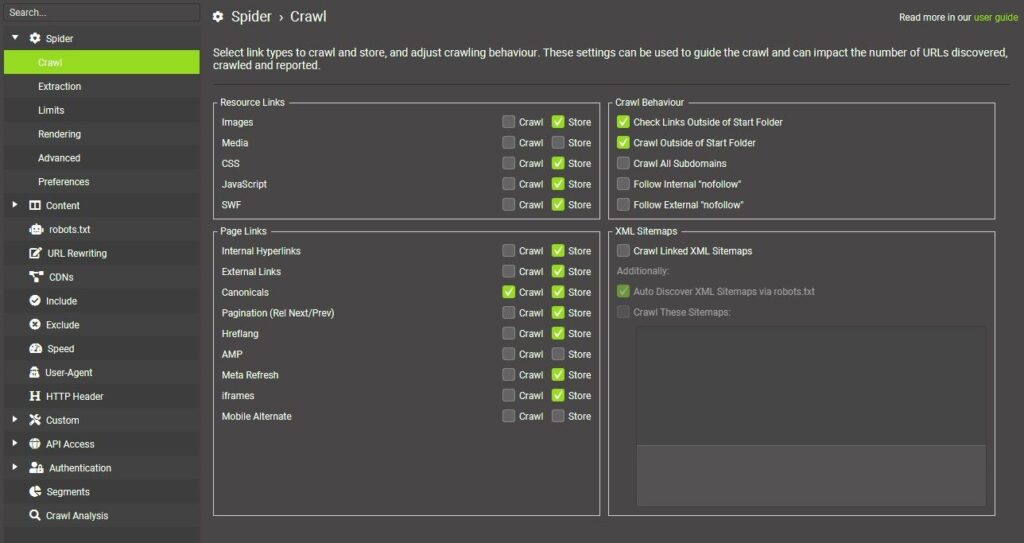
Run two Screaming Frog crawls: one with Crawl Canonicals only ticked, one without. Compare total URL counts. A massive jump signals parameter sprawl.
Check server logs for repeated hits on near-identical parameter URLs. If Googlebot keeps revisiting them, you have a trap.
6. Hreflang Problems That Don’t Show Errors
Hreflang is one of the most fragile elements in technical SEO, and unfortunately, it’s also one of the most misunderstood.
Even when tools say your hreflang setup looks fine, you could still be dealing with issues like:
- hreflang pointing to the wrong language or region
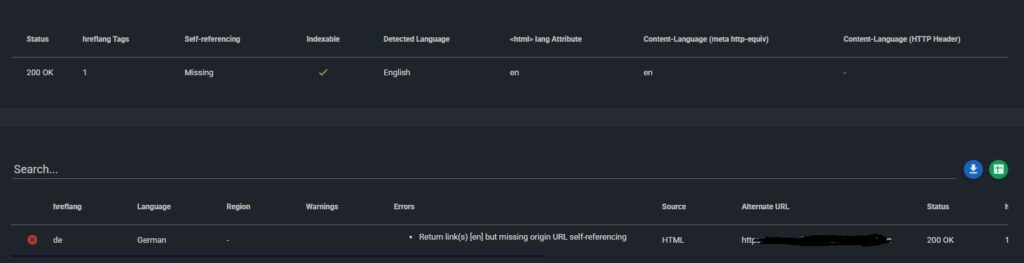
- Missing return tags between language versions
- Self-referencing tags that were accidentally skipped
Tools may not raise flags for these unless the markup is completely broken. But Google can get confused by any inconsistency, and that can result in the wrong version of your page showing up in search.
How to review it:
Check your page source for hreflang tags. Make sure they’re accurate, include self-references, and point to live URLs.
Use a tool like hreflang Tags Testing Tool to catch missing or mismatched entries.
Filter your Performance report in Search Console by country. If traffic from a key region has dropped or stalled, your hreflang setup might be broken.
Test results using a VPN to confirm the right page shows in each region.
7. Pages and Content That JavaScript Hides
One of the biggest gaps in any SEO technical audit checklist is JavaScript rendering. A lot of websites rely on JavaScript for navigation menus, product listings, tabs, accordions, and even body content. That’s where the trouble starts.
Most crawlers grab the initial HTML, maybe wait a second or two for rendering, and move on. If your content loads after an interaction, like a click, scroll, or hover, it might never be seen by the tool.
That means:
- Important links don’t get picked up
- Copy that’s critical for SEO isn’t indexed
- Navigation paths get ignored entirely
It’s more common than you’d think. E-commerce filters, ‘load more’ buttons, lazy-loaded content, or even full articles loaded via client-side rendering are usually JS-dependent and often affected.
How to catch it:
Open the page in Chrome. Right-click → View Page Source (this shows you what crawlers see).
Then open DevTools → Elements tab (this shows you what users actually see).
If key text, links, or buttons are missing in the source, search bots might not see them either.
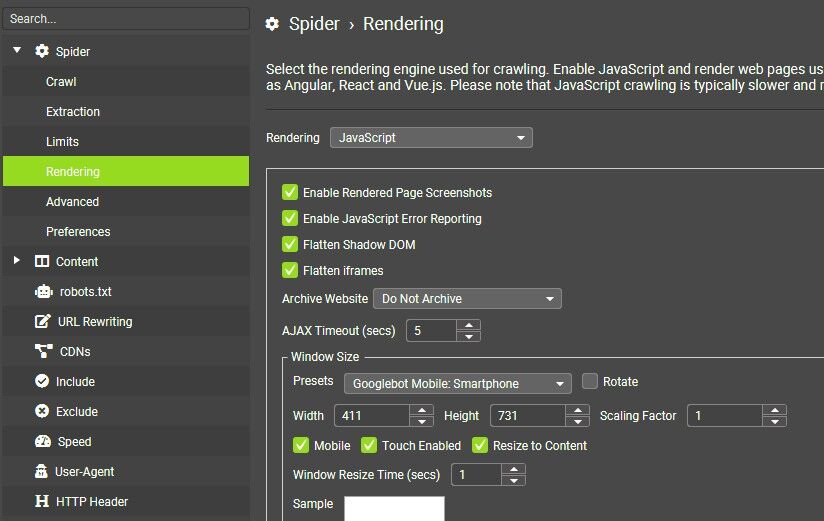
In Screaming Frog, switch to JavaScript rendering mode. You’ll see if your nav or content is invisible in standard crawls.
You can also use Google Search Console’s URL Inspection tool. Run the live test to see a screenshot of the rendered page. Keep in mind that the page is always rendered in mobile view, and depending on the length of the page, you may only see a portion of it.
8. Check for Region-Locked Pages
Some websites show different content depending on where the visitor is located. This is common for e-commerce stores with country-specific catalogs, or publishers with region-based licensing.
Most SEO tools run crawls from US-based IP addresses. So if your site uses geo-blocking to limit access to certain regions, those pages may not be included in your crawl data. That means entire sections of your site could be missed during your technical SEO audit, especially if the content is only available to users in specific countries.
Googlebot generally crawls from US locations. If users in other countries see different versions, or no content at all, those pages may not be indexed correctly. Region-specific content (like pricing, stock availability, or localised blog posts) can lead to duplication or crawl issues if not handled properly. In some cases, geo-blocking results in unnecessary redirects or soft 403 pages that drain crawl budget.
How to check for it:
Use a VPN to test key pages from different countries. This helps you confirm what international users, and potentially search engines, are able to access.
Crawl the site with the Accept-Language header set to each active region. Tools like Screaming Frog allow you to do this.
Look in Google Search Console’s ‘Performance’ report and filter by country. If impressions drop off for specific markets, region-blocking could be the cause.
What a Complete SEO Technical Audit Should Include
Automated tools are essential, especially when you’re working with large websites or limited time. They help you surface obvious problems and collect data quickly. But they don’t catch everything.
A full SEO technical audit should include both automated and manual steps. Here’s what to include beyond the crawl:
- JavaScript rendering checks using browser tools and Search Console
- Accessibility testing with real keyboard navigation and screen readers
- Schema markup reviewed in context, not just validated
- Server log analysis to uncover how bots actually behave
- Core Web Vitals based on field data, not just simulated scores
- hreflang verification across all language and country versions
- Manual review of Google search results to catch duplicates, variants, and index gaps
When you combine the speed of automation with the accuracy of manual inspection, you get a clearer view of what’s really happening on your site.
That’s what separates a good audit from a complete one.
FAQs
1. What is a technical audit in SEO?
A technical audit is a health check for a website’s behind-the-scenes elements. It reviews crawlability, indexing, site speed, structured data, security, mobile readiness, and similar factors to uncover problems that could limit organic visibility.
2. How much does a technical SEO audit cost?
Agency or consultant pricing falls between $2,000 and $10,000 for small to mid-size sites. Large e-commerce or news platforms with complex architecture can see fees climb past $20,000. Scope, depth, and rush timelines are the big cost drivers.
3. How long does a technical SEO audit take?
A focused review of a modest site may wrap up in one to two weeks. Enterprise audits that include log analysis, JavaScript rendering checks, and multiple environments often stretch to four to six weeks.
4. Which tool is often used to perform a technical SEO audit?
Screaming Frog SEO Spider is the most common choice because it mimics a search-engine crawl, captures on-page data, and integrates with Google Analytics, Search Console, and PageSpeed Insights.
5. How often should you do an SEO audit?
Running a full audit once or twice per year keeps most sites on track. High-traffic or frequently updated properties benefit from quarterly reviews, with lighter monthly spot checks for critical templates.
6. What is the difference between technical SEO and SEO?
Technical SEO deals with infrastructure, making sure crawlers can reach, render, and understand pages. Broader SEO also covers content quality, keyword targeting, link building, user intent, and analytics, everything that influences rankings beyond the underlying code and server setup.
